Desktop download troubleshooting
Your browser may be blocking the download.
Modern browsers automatically block some downloads as a security measure. Sometimes, they will block downloads that are perfectly safe.
If your download won't start or shows a warning, follow the steps below for your browser below to allow it.
Remember to only allow a download you were expecting from a source you trust. These steps override a safety warning, so make sure the file is the one you meant to get.
Most common issue: First download works, but the rest are blocked
If your first download went through fine but every download after that is blocked, this is the fix you need.
When you download more than one file from our site, your browser may step in with a message like “This site attempted to download multiple files automatically” (Chrome and Edge) or a request to allow multiple downloads (Safari). This is a standard browser safety prompt. Once you allow multiple downloads, your files should download normally.
Solutions for Chrome & Edge
Temporary solution: Refresh the page
Refreshing the page will allow one download to go through. However, whenever you want to download another file during that session, you will need to refresh the page again.
Keep in mind that refreshing the page will reset your scroll position and return you to the top of the page.
Recommended solution: Always allow multiple downloads
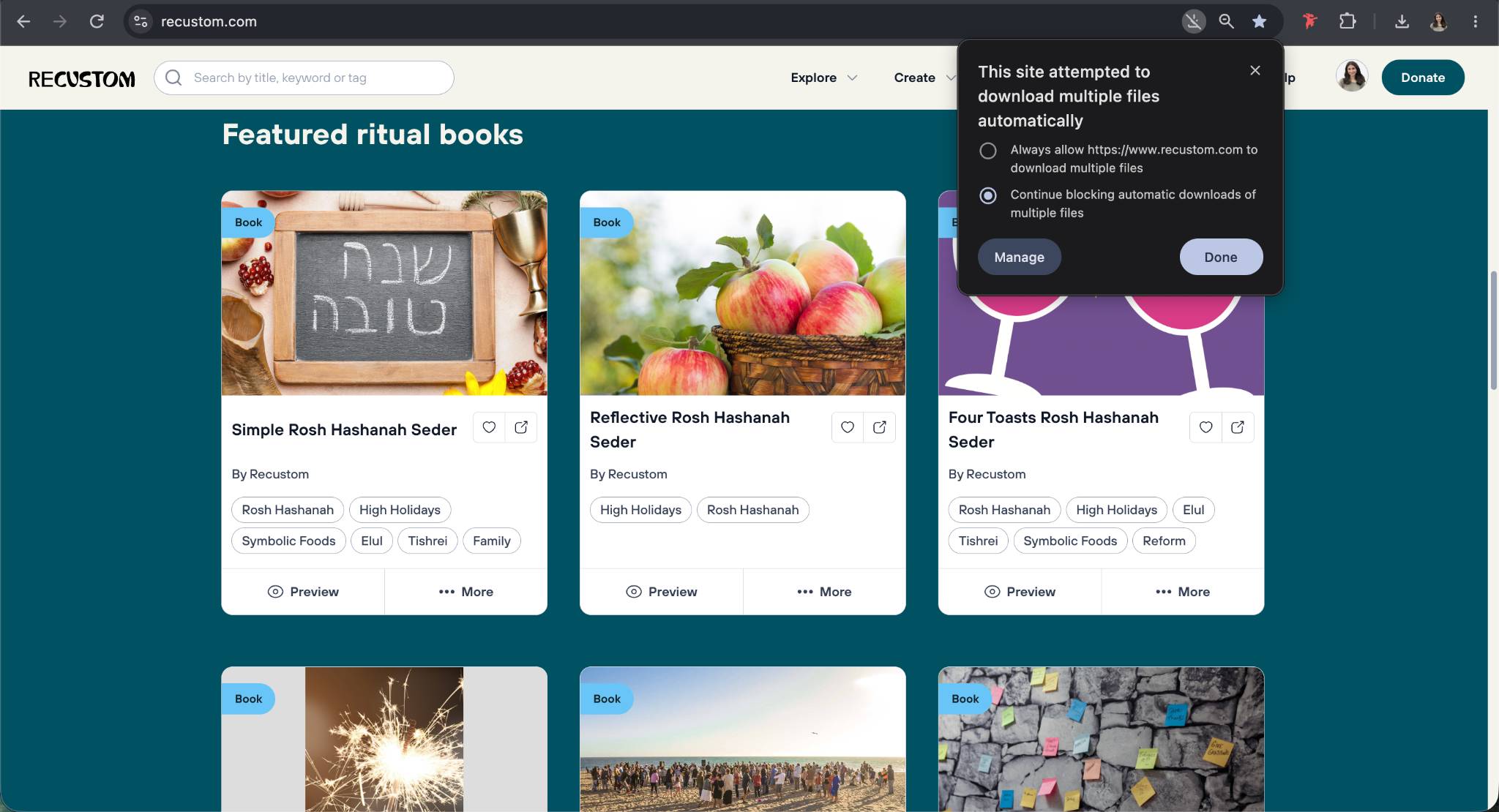
Navigate to the browser notification by clicking the download icon on the right side of the address bar, then select “Always allow.” Please see the screenshot below for an example from Chrome.
- Look at the right side of the address bar (the white bar at the top where the web address appears). You may see a small icon indicating that a download was blocked—often a downward arrow or a page icon with a red mark.
- Click the icon. A small panel will open explaining that the site tried to download multiple files.
- Select “Always allow https://recustom.com to download multiple files.”
- Click Done, then click Download again.
Your files should now download without interruption.
In Edge, here is how you change the setting manually (if the icon or prompt has already disappeared):
Go to Settings → Cookies and site permissions → Automatic downloads, then allow our site.
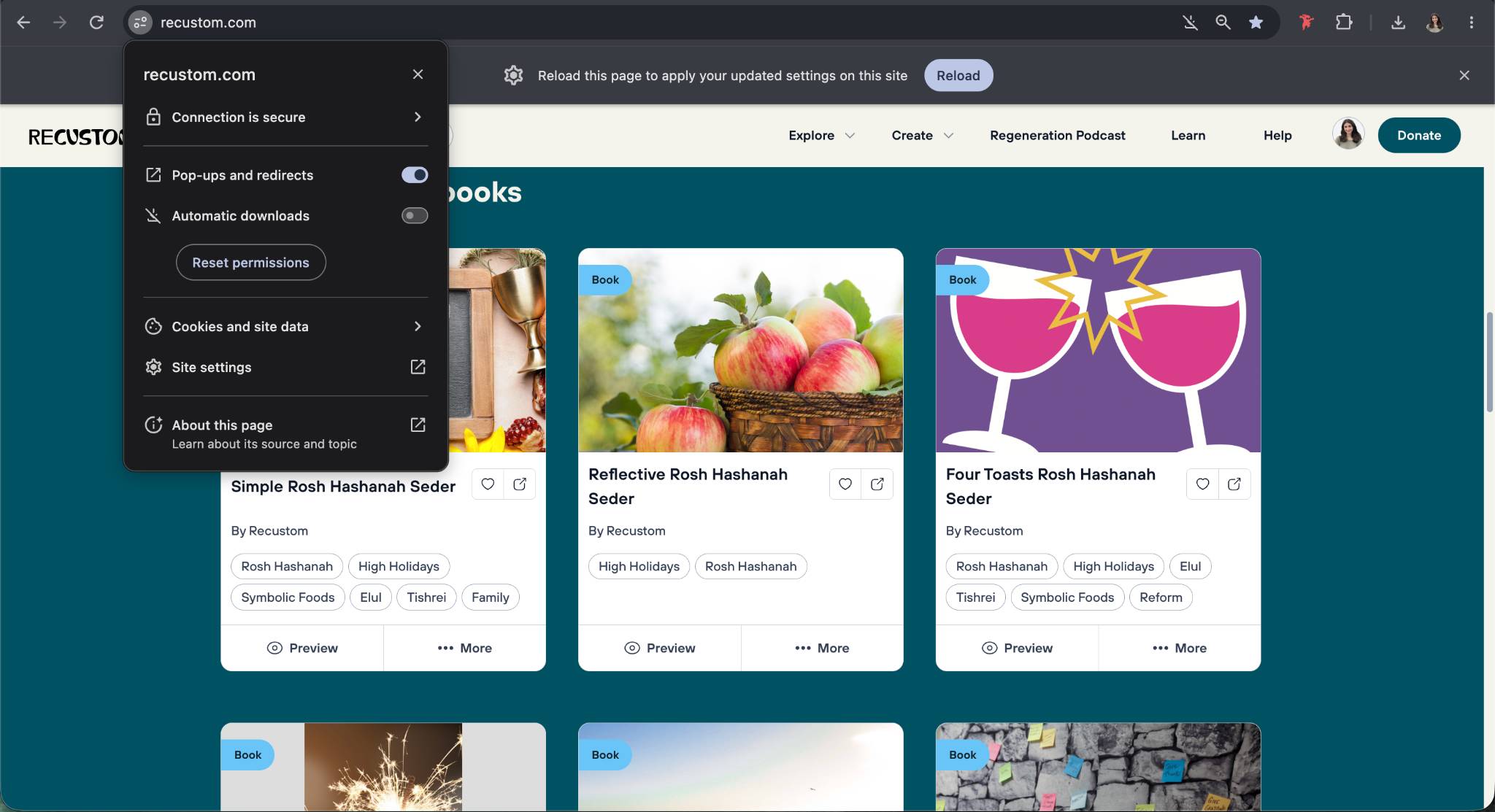
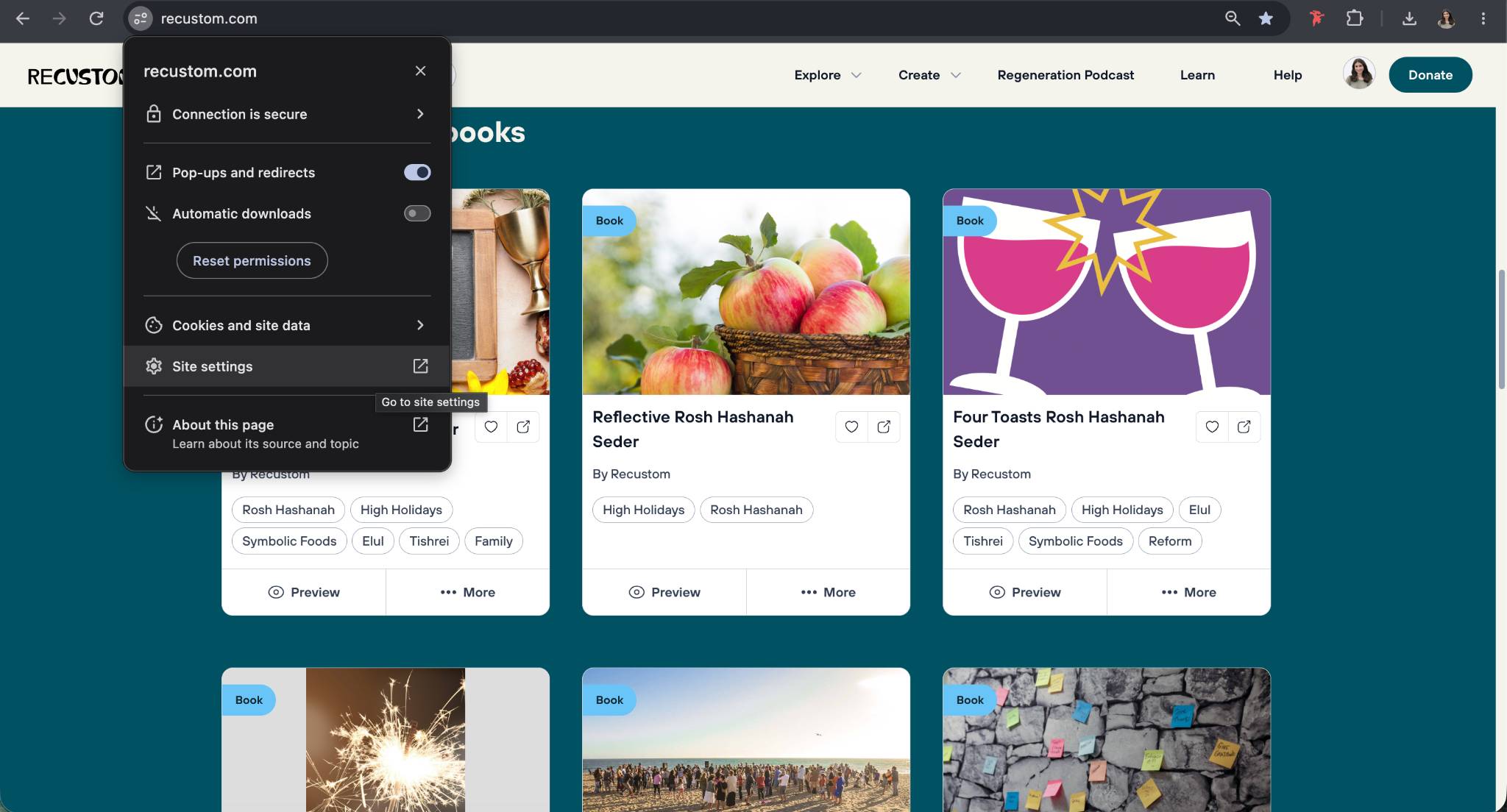
In Chrome, here is how you change the setting manually (if the icon or prompt has already disappeared):
- Click the icon at the left end of the address bar (a small sliders icon, or a padlock), just before the web address.
- Choose Site settings from the menu that opens.
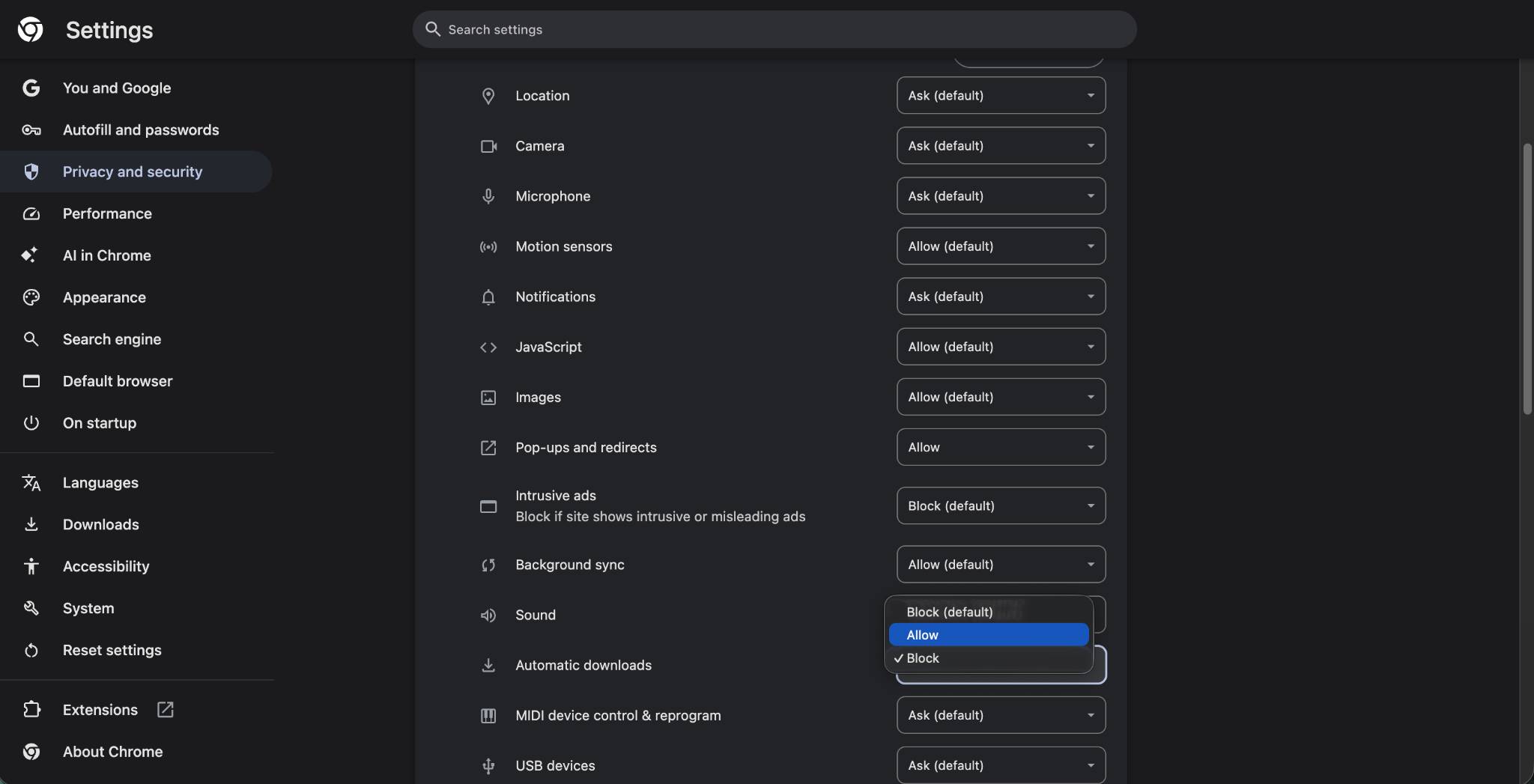
- Find Automatic downloads in the list and set it to Allow.
- Return to the page, refresh, and try downloading again.
Step 1:
Step 2.
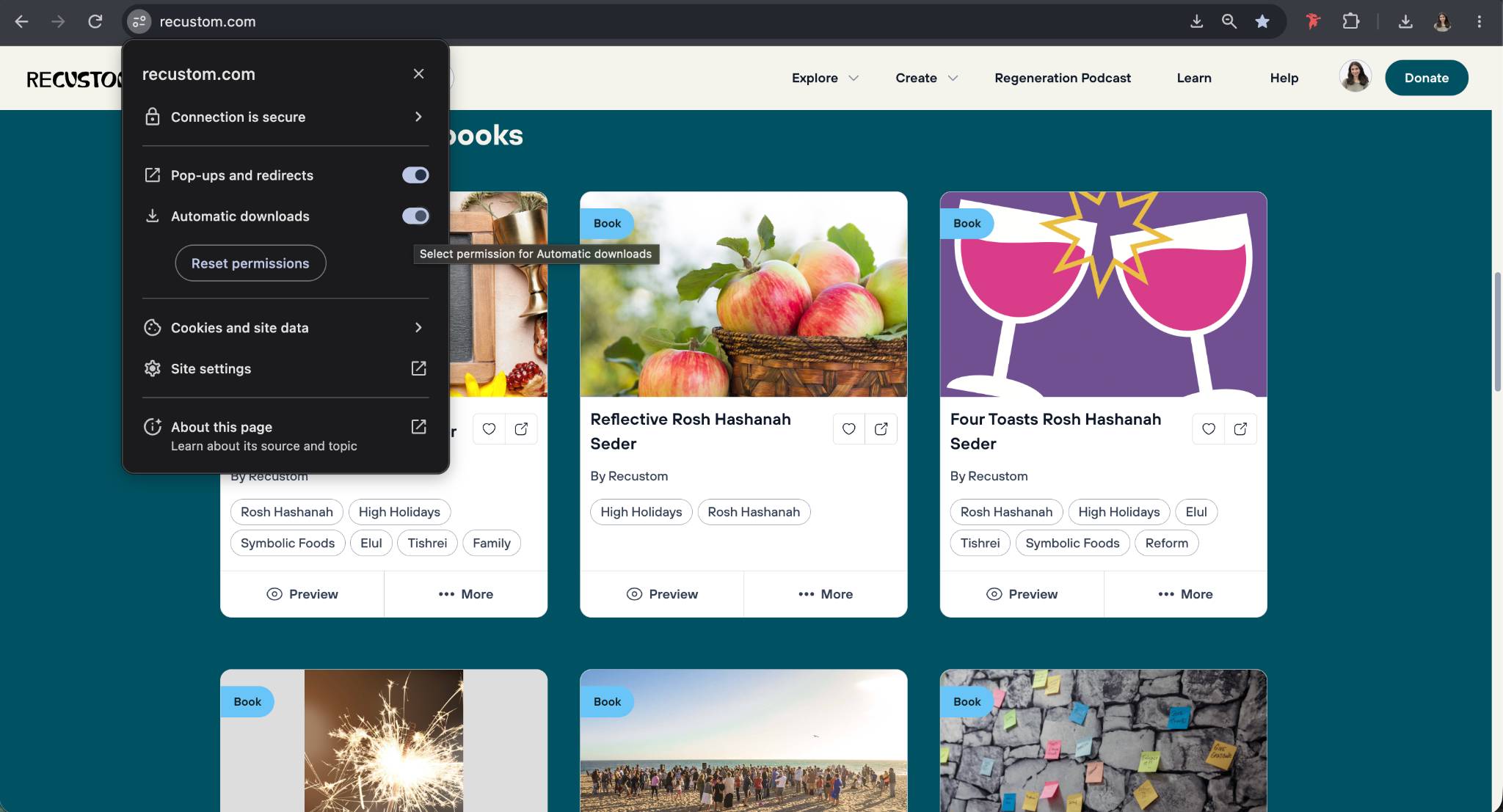
If you for some reason you can't find Automatic downloads in list, you can also go to Site settings → Privacy & security →find Automatic downloads in the list, and click Allow
Step 1.
Step 2.
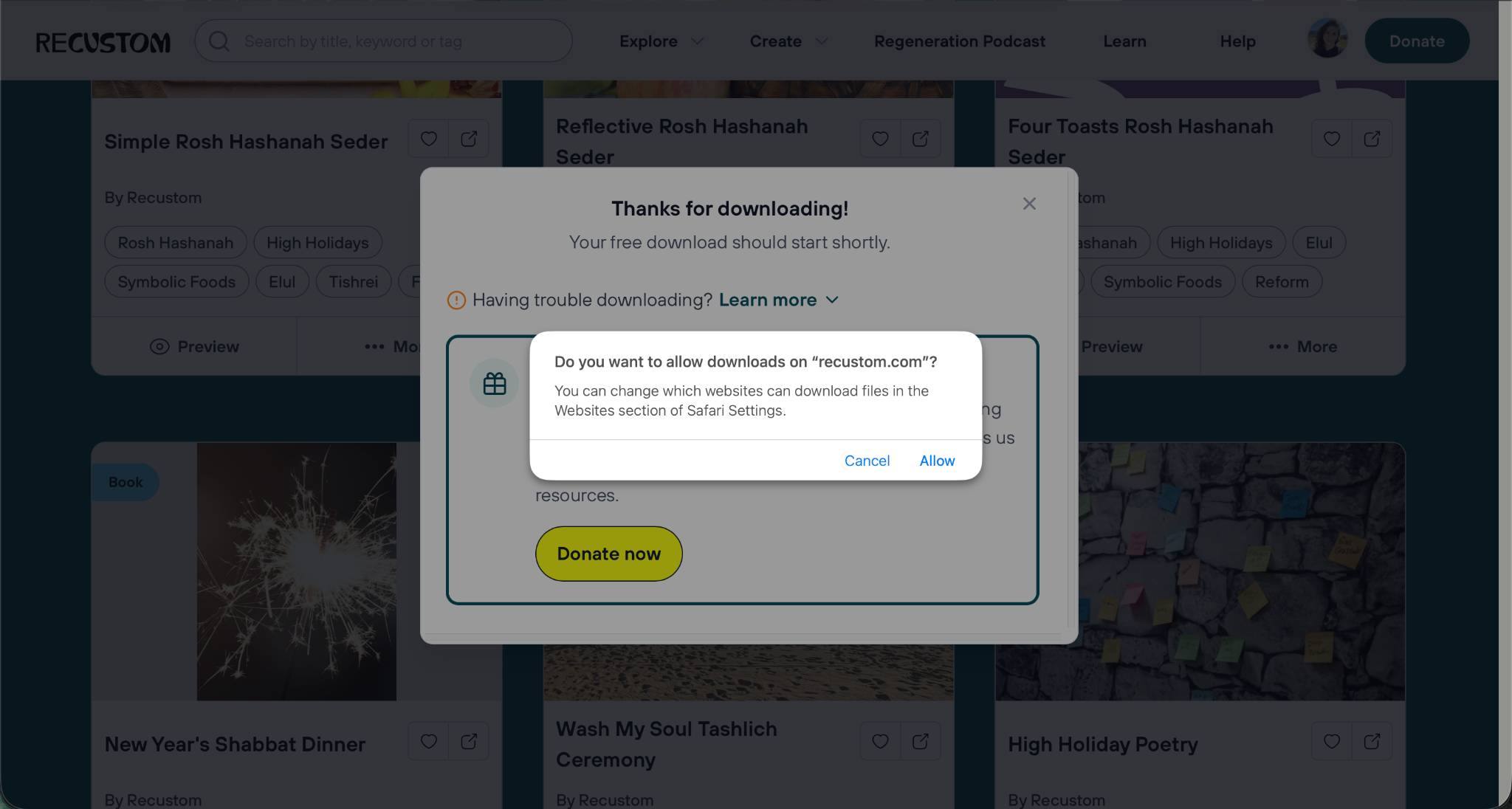
Safari (Mac)
Safari asks once per site. When you see "Do you want to allow downloads on recustom.com?", click Allow. If you don't see the prompt, follow the Safari (Mac) steps further down to set our site's Downloads permission to Allow — that also lets multiple files download.
This only affects downloads from our site, and you can change it back at any time in your browser's site settings.
Browser warnings for "unsafe" files
The sections below are for a different situation: your browser downloaded (or tried to download) a single file but flagged it with a safety warning, such as "This file may be dangerous" or "Keep anyway?" Use the steps for your browser to allow it.
Google Chrome
- Click the Downloads icon in the top-right of the toolbar (or press Ctrl + J on Windows).
- Find the blocked file in the list — it will show a warning such as "Blocked" or "This file may be dangerous."
- Click the three-dot menu (⋮) next to that file.
- Choose Keep (you may then need to confirm with Keep anyway).
If you see "Insecure download blocked": this means the file comes over an unsecured (HTTP) connection. Use the same steps above — open the Downloads list, click the three-dot menu next to the file, and choose Keep.
If there's no "Keep" option: Chrome has flagged the file as dangerous, or the device is managed by an employer/school. Skip to Still can't download?
Microsoft Edge
- Click the Downloads icon in the toolbar (or press Ctrl + J).
- Find the blocked file — it may say "This unsafe download was blocked" or "…isn't commonly downloaded."
- Click the More actions (…) menu next to the file.
- Select Keep. If another warning appears, click Show more, then Keep anyway.
If Windows won't open the file after it downloads (message: "This file came from another computer…"): open File Explorer, right-click the file, choose Properties, and on the General tab tick Unblock, then OK.
Safari (Mac)
If a permission pop-up appeared, click Allow or Download — that's usually all it takes.
If you clicked the wrong option, or nothing happened:
- From the menu bar, go to Safari > Settings (older versions: Preferences).
- Click the Websites tab, then select Downloads in the sidebar.
- Find our website in the list and set its drop-down to Allow.
- At the bottom, set "When visiting other websites" to Ask or Allow.
- Return to the page and try the download again.
You can watch the download in the Downloads button (top-right of the Safari toolbar).
Firefox
- Click the Downloads icon (downward arrow) in the toolbar to open the downloads panel.
- Find the blocked file — it may say "This file may harm your computer" or "…is not commonly downloaded."
- Right-click (or Control-click on Mac) the file and choose Allow Download.
- The download will then finish normally.
Downloading on mobile devices
Please see this article for download troubleshooting on mobile devices.
Still can't download?
If none of the above worked, one of these is usually the cause:
- Antivirus or security software may be blocking or quarantining the file, separately from your browser. Check your security software's alerts or quarantine list, and allow the file there if you trust it.
- Work or school devices are often managed by an IT department that blocks certain downloads by policy. In this case the browser won't offer a "Keep" or "Allow" option — you'll need to contact your IT team.
- Pop-up or ad blocker: If clicking the download link does nothing at all, your pop-up or ad blocker may be stopping it. Look for a small blocked-content icon at the right end of the address bar, click it, choose to always allow pop-ups from our site, then try the download again. If you use a separate ad blocker (like a browser extension), turn it off for our site and reload the page.
- Try downloading the file in different browser.
Still stuck? Contact our support team and let us know which browser you're using and the exact wording of any warning message — that helps us get you the file quickly.